Getting Started Guide
Everything you need to go from zero to live trading. Follow the steps below in order.
Overview
This guide walks you through every step needed to start automated trading with MaxScalper EA. Whether or not you have used MetaTrader 5 before, simply follow the sections below in order.
Before you begin, you will need:
- A computer running Windows (Windows 10 or later recommended)
- A stable internet connection
- An active MaxScalper EA subscription (Lite or Pro plan)
- Your licence key (sent to your email after subscribing)
Recommended Brokers
MaxScalper EA works with any MetaTrader 5 broker that offers XAUUSD trading. Below are our recommended partners — selected for their low spreads, fast execution, and reliable fund security.

Vantage Markets
Award-winning CFD broker · 15+ years · 1,000+ instruments
- Regulated by ASIC (Australia) & FCA (UK)
- Low spreads, no inactivity or withdrawal fees
- Full MT5 support with fast execution

Ultima Markets
Ultimate Gateway of Trading · 250+ CFD instruments
- Regulated by CySEC (EU) & FCA (UK)
- Spreads from 0 pips · Up to 1:2000 leverage
- ECN & Pro ECN accounts available

VT Markets
Global multi-asset ECN broker · 3M+ registered users
- Regulated by ASIC (Australia) & FSCA (South Africa)
- True ECN raw spreads · $720B monthly volume
- Client funds insured up to $1M by Lloyd's of London
Step 1: Open a Trading Account
To use an Expert Advisor, you need a trading account that supports MetaTrader 5. We recommend using our preferred broker for the best compatibility and trading performance.
Visit the broker's website
Click the button below to open the broker's registration page. This is our recommended broker — offering low spreads, secure deposits and withdrawals, and full MetaTrader 5 support.
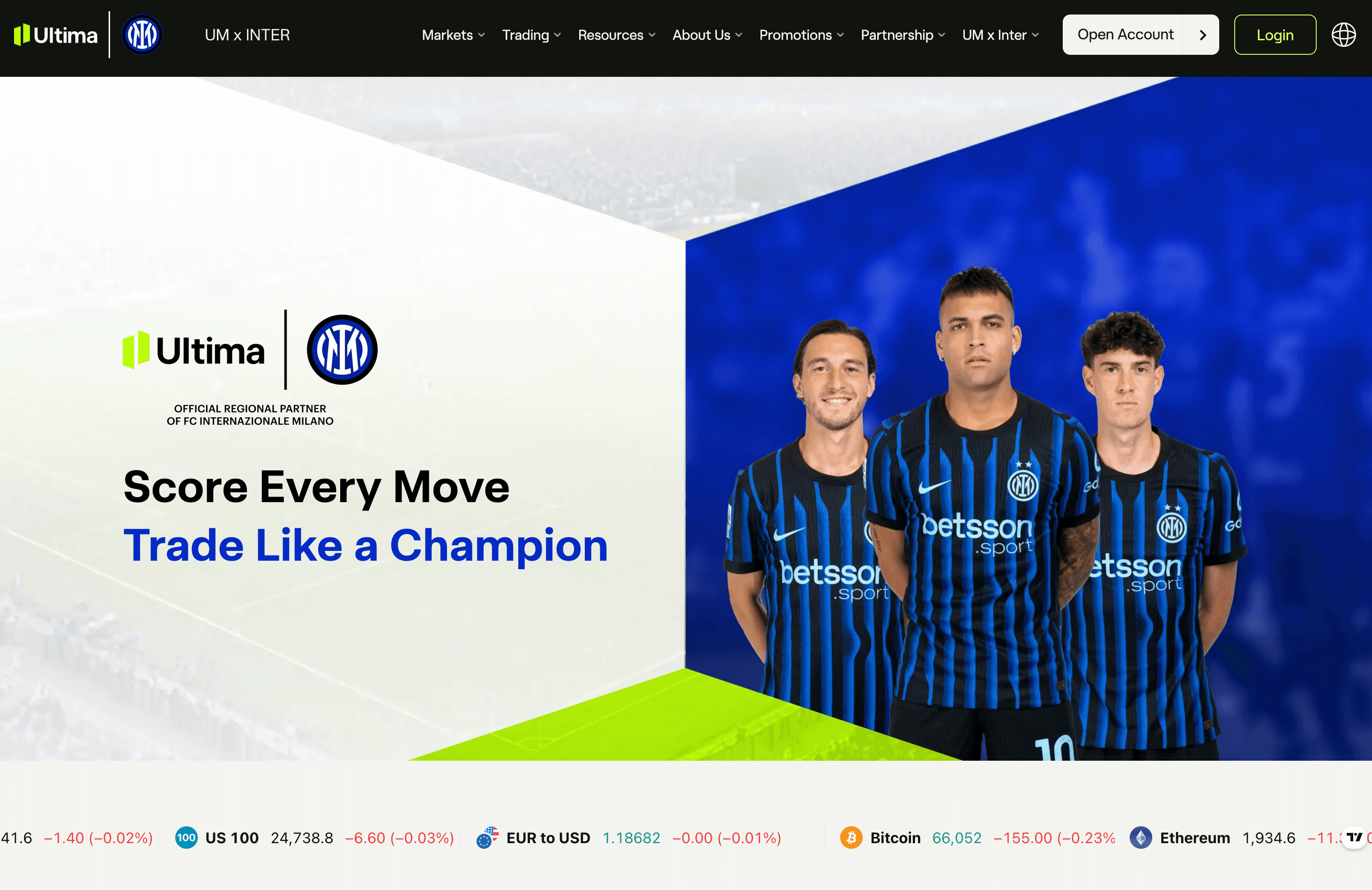
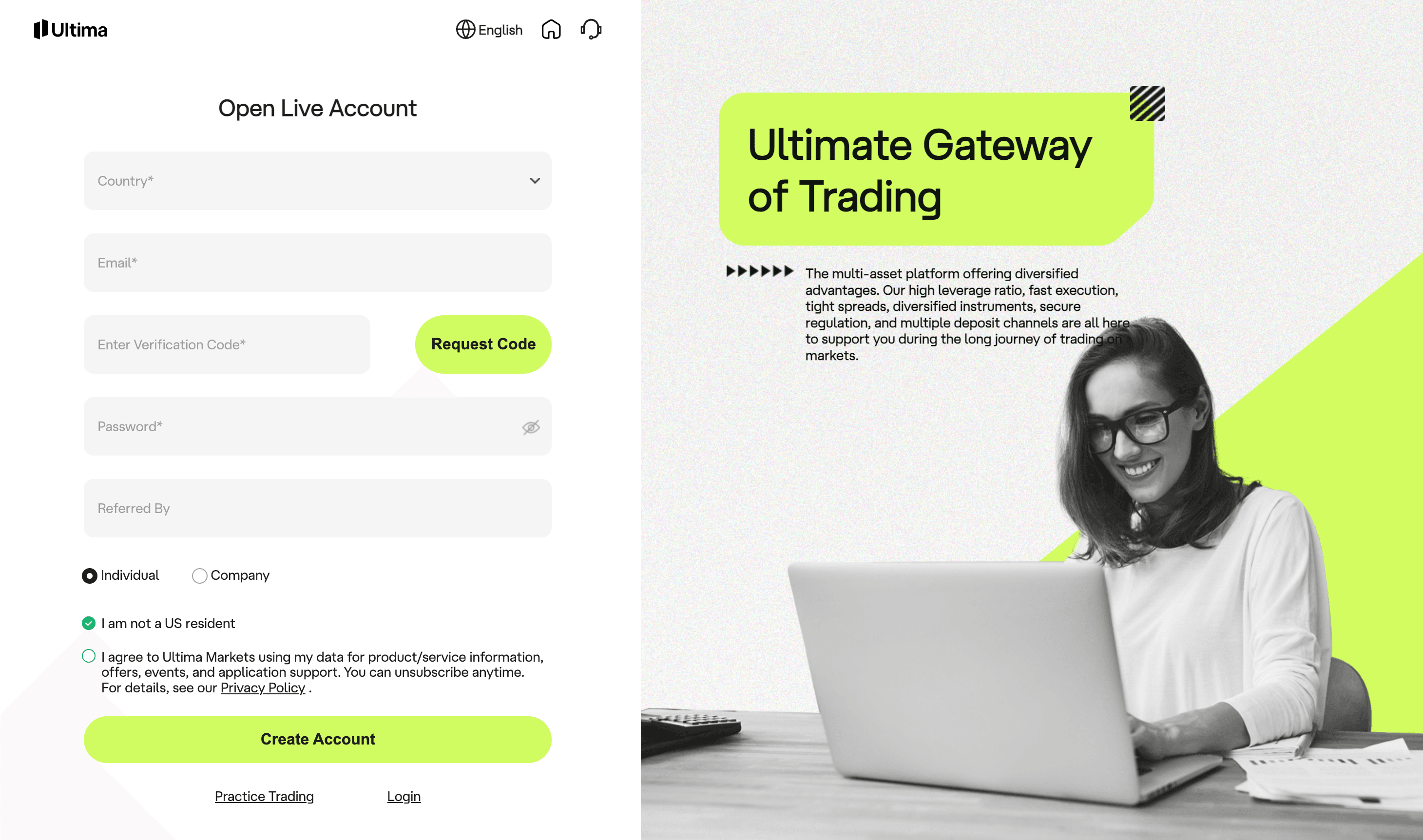
Complete registration
Fill in your personal details including your name, email address, and phone number. You will need to complete identity verification (KYC).
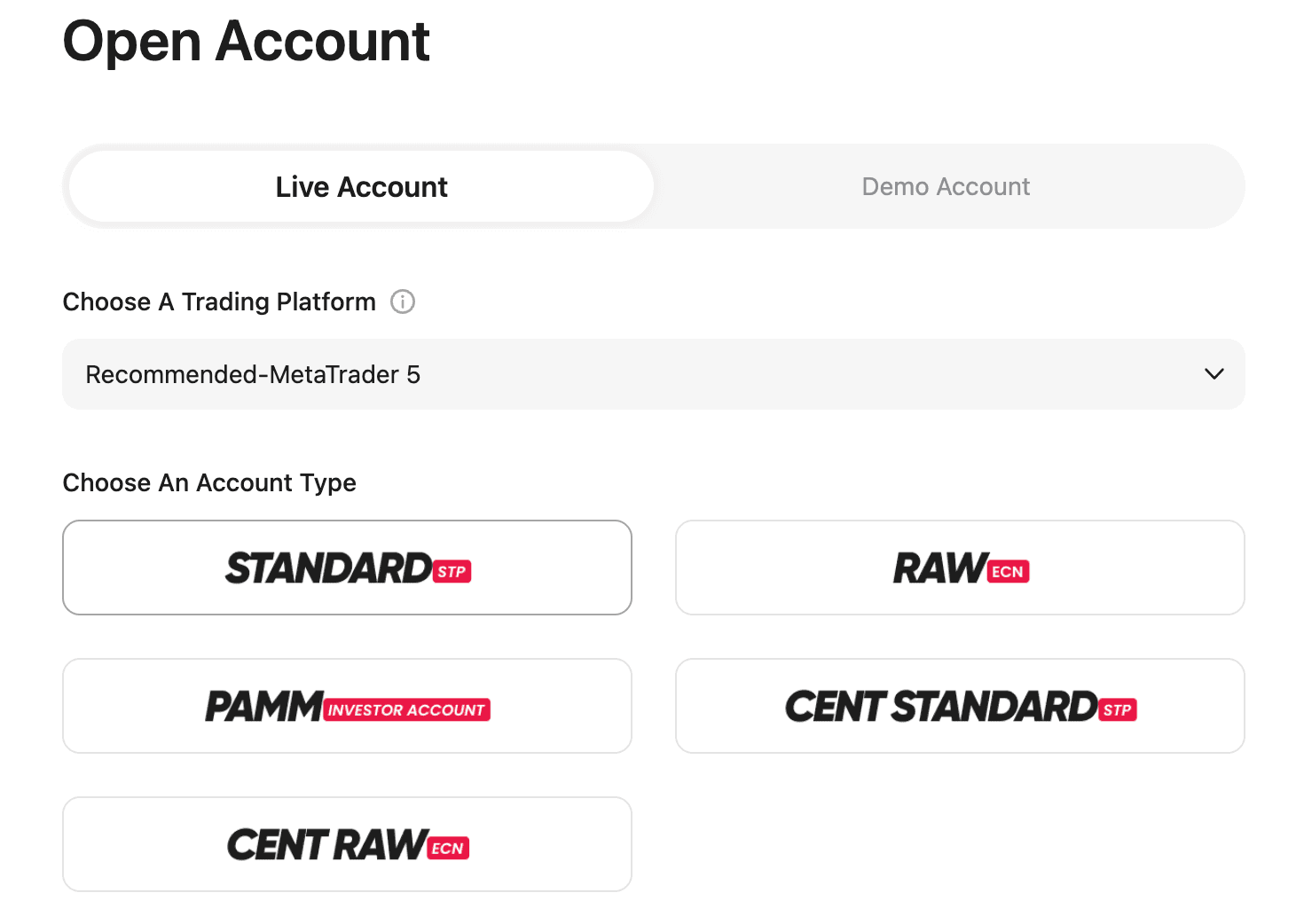
Choose your account type
Select the account type that matches your MaxScalper EA plan. For the Lite plan, choose a Cent account (USC). For the Pro plan, you may choose a USD account or a Cent account.
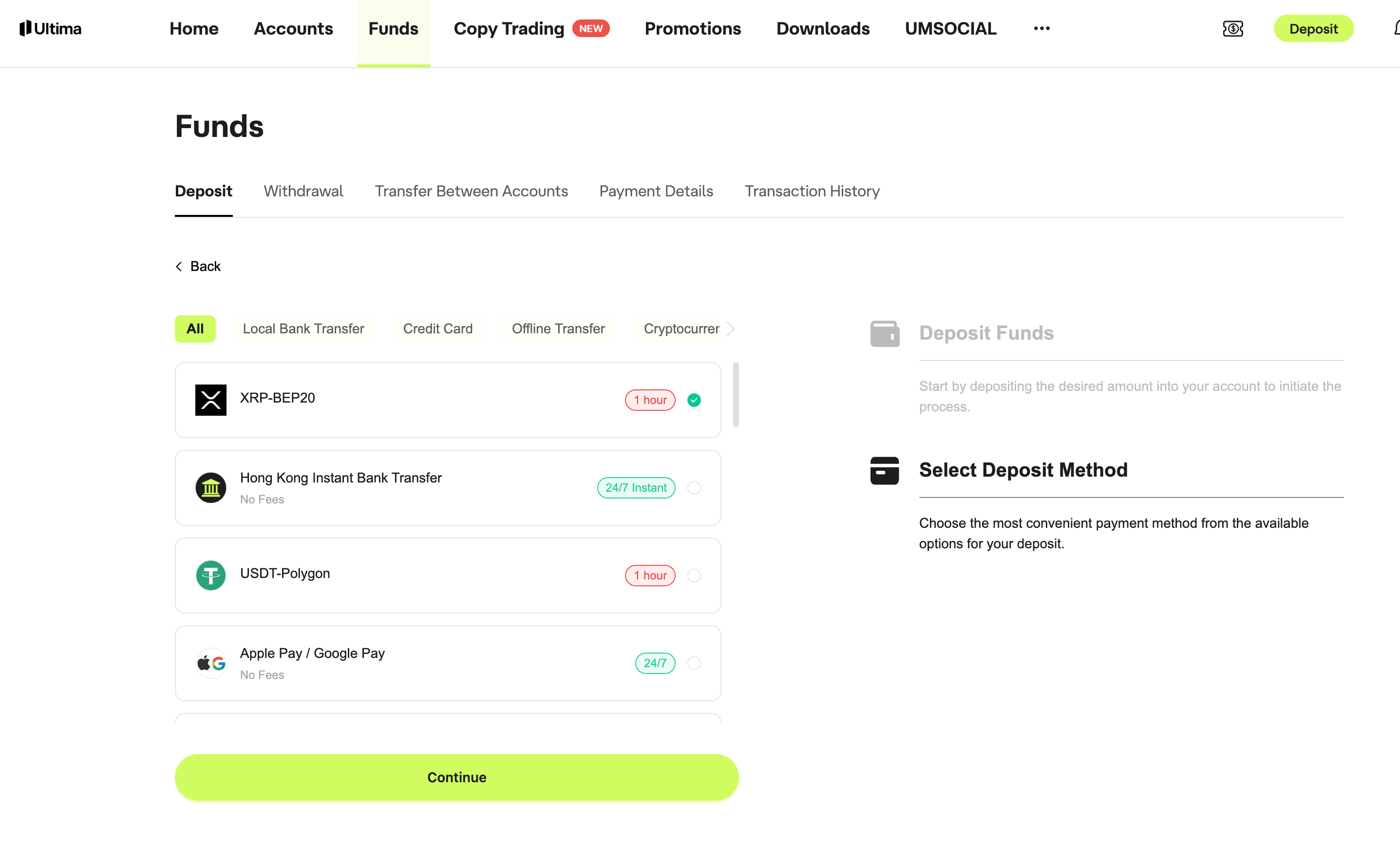
Fund your account
Deposit funds into your trading account. We recommend a minimum of $200 for the Lite plan and $5,000 for the Pro plan so that MaxScalper EA can manage risk effectively.
Save your login details
Once your account is created, you will receive your MT5 login number, password, and server name. Keep these safe — you will need them to log in to MetaTrader 5.
Step 2: Install MetaTrader 5
MetaTrader 5 (MT5) is the trading platform that MaxScalper EA runs on. Here is how to download and install it on your Windows PC.
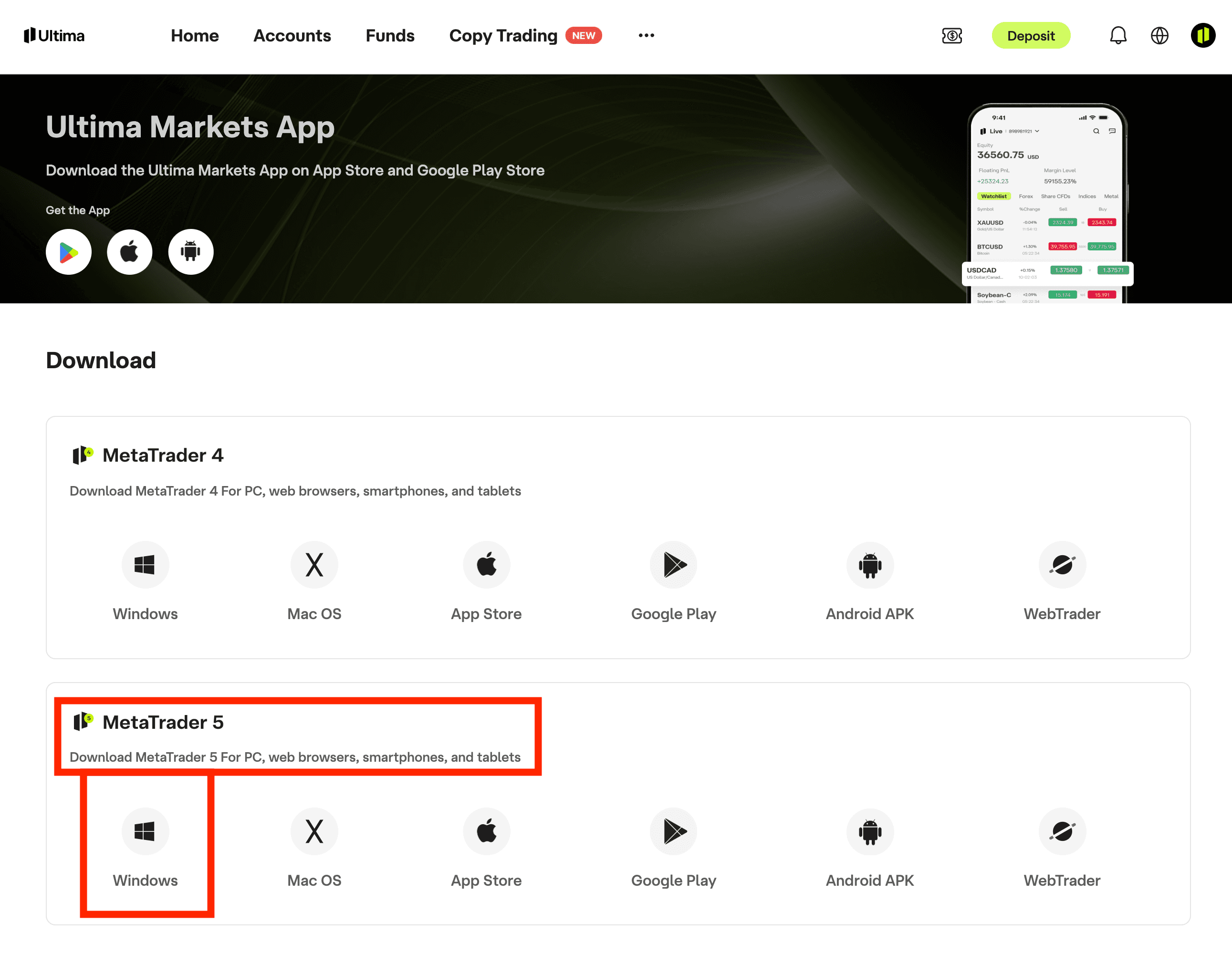
Download MetaTrader 5
Go to the MetaTrader 5 official website (metatrader5.com) or download it directly from your broker's website.
Run the installer
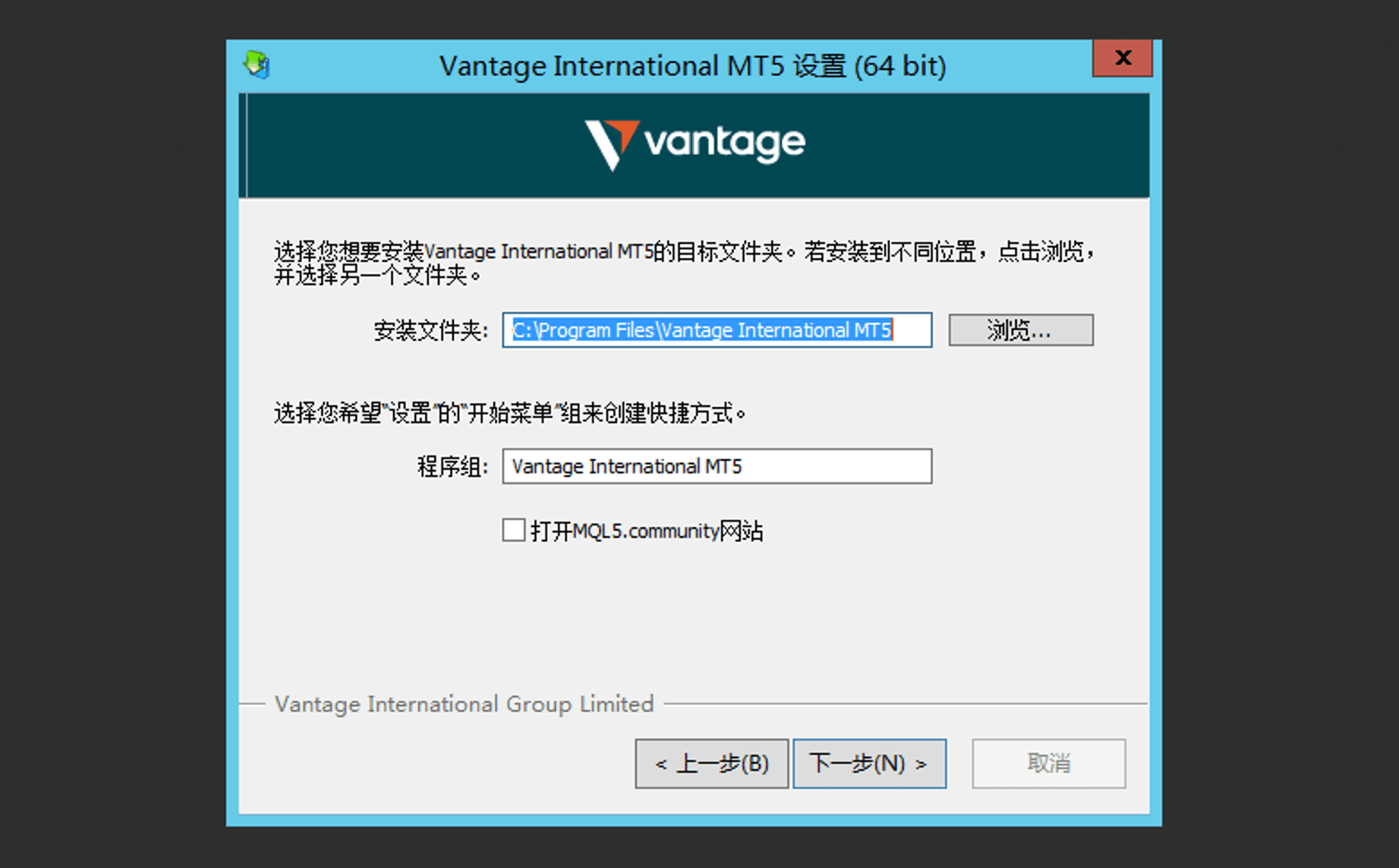
Open the downloaded file (e.g. mt5setup.exe) and follow the on-screen instructions. Accept the licence agreement and choose an installation directory (the default location is fine for most users).

Complete installation
Click 'Next' through the installer steps and wait for the installation to finish. MetaTrader 5 will launch automatically once complete.
Step 3: Log In to MetaTrader 5
Now that MetaTrader 5 is installed, you need to connect it to your trading account.
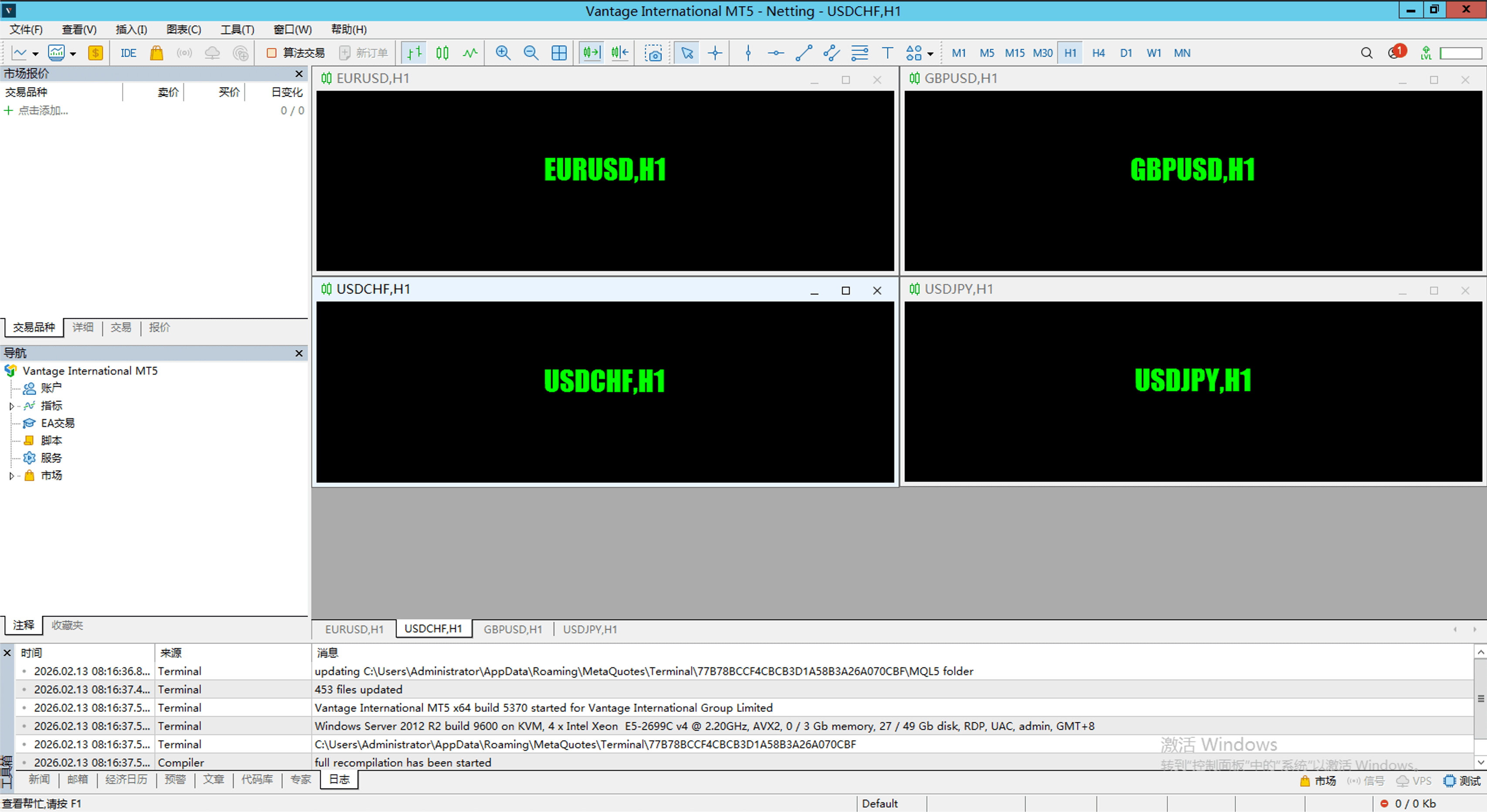
Open MetaTrader 5
Launch the MetaTrader 5 application from your desktop or Start menu.
Open the login dialog
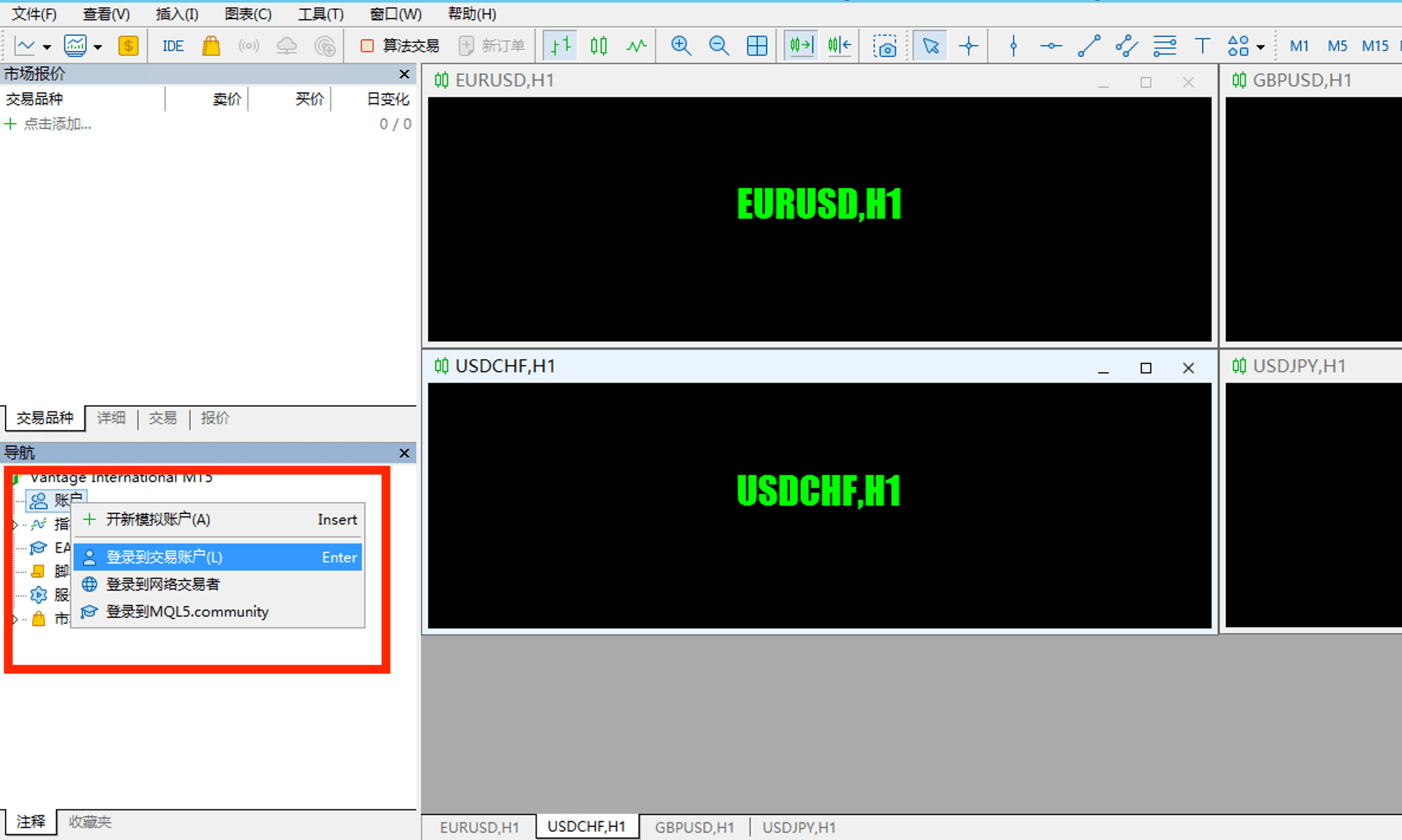
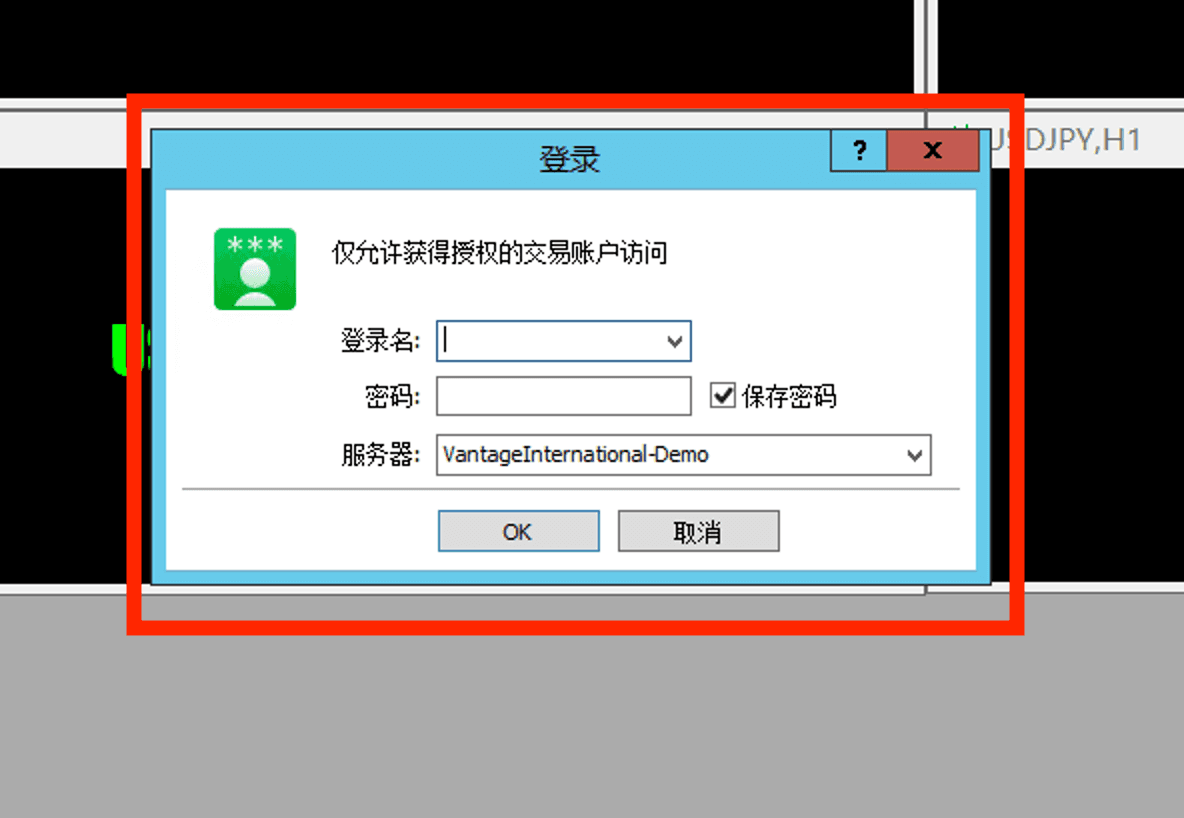
Go to File > Login to Trade Account (or press Ctrl+L). A login dialog window will appear.
Enter your account details
Enter your MT5 login number (account number), password, and select the correct server from the dropdown. These details were provided when you created your trading account.
Click Login
Click 'OK' to log in. You should see your account balance in the bottom-left corner of the platform, and the connection status should show green in the bottom-right corner.
Step 4: Install the EA Files
After subscribing, you will receive the MaxScalper EA files by email. Here is how to install them in MetaTrader 5.
Download the EA file
You can download the MaxScalper EA file (.ex5 format) from your web dashboard or via the link provided in your subscription confirmation email.
Open the data folder
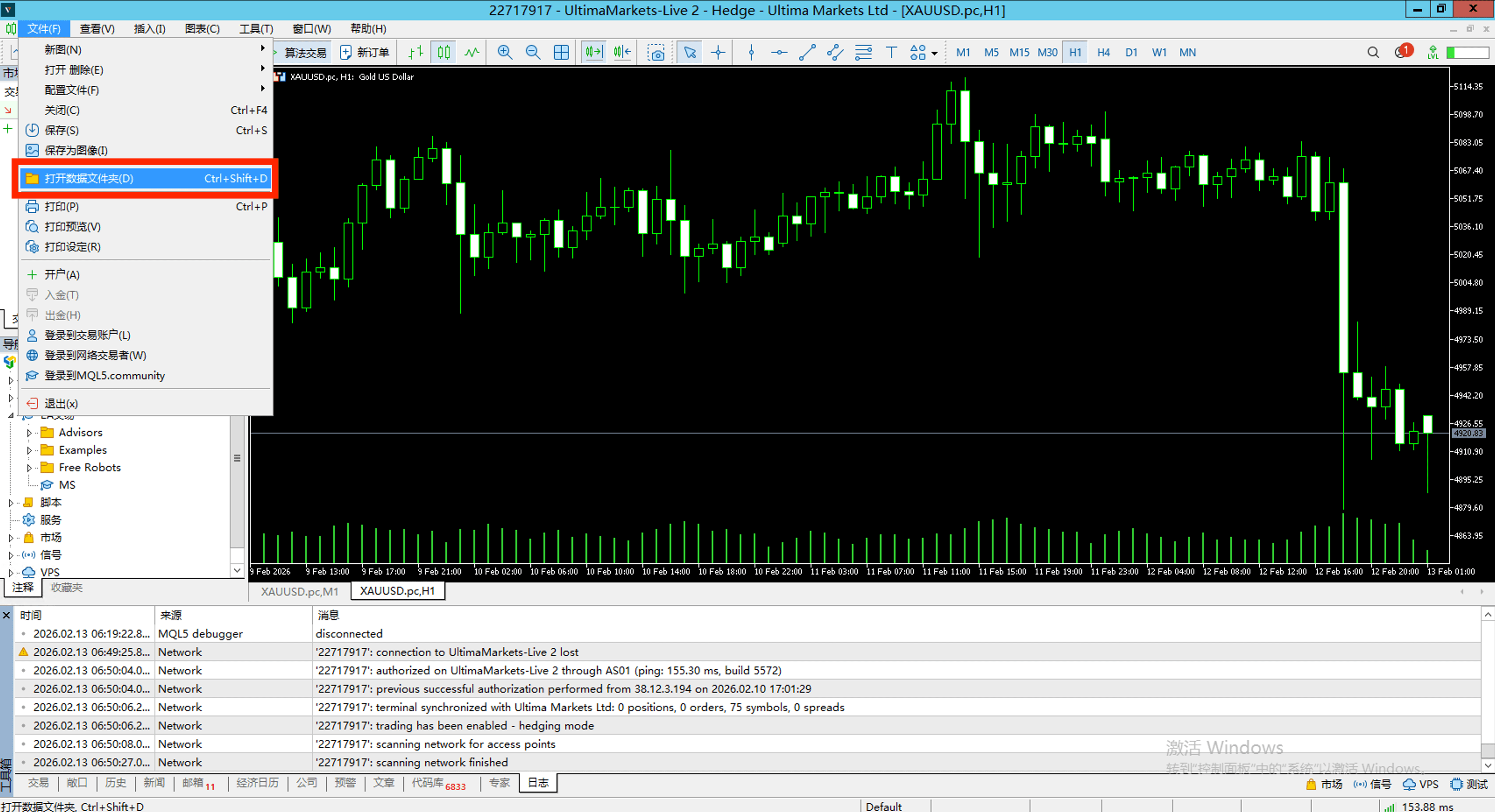
In MetaTrader 5, go to File > Open Data Folder. This will open a Windows Explorer window showing the MT5 data directory.
Navigate to the Experts folder
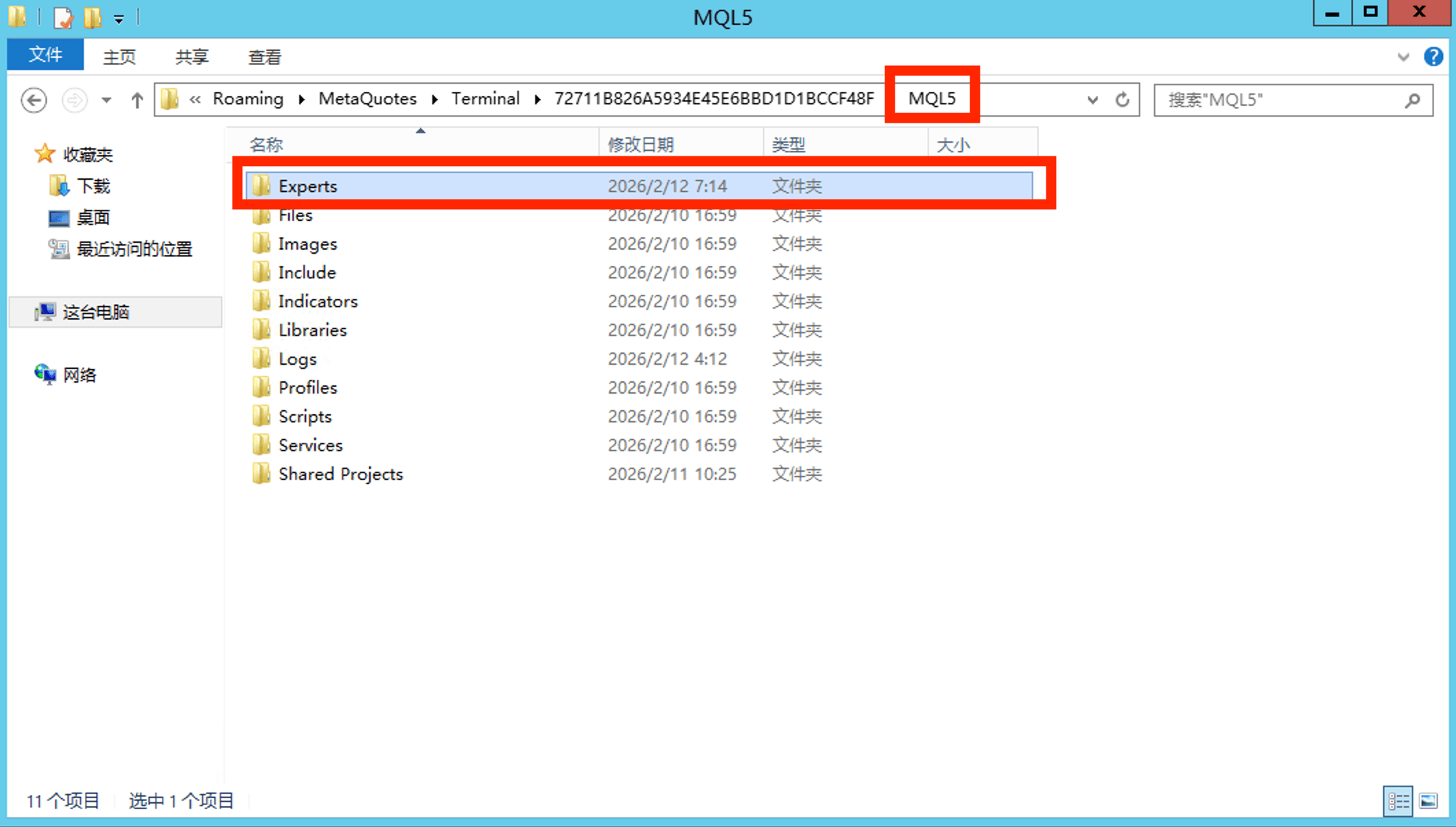
Inside the data folder, open: MQL5 > Experts. This is where all Expert Advisor files are stored.
Copy the EA file
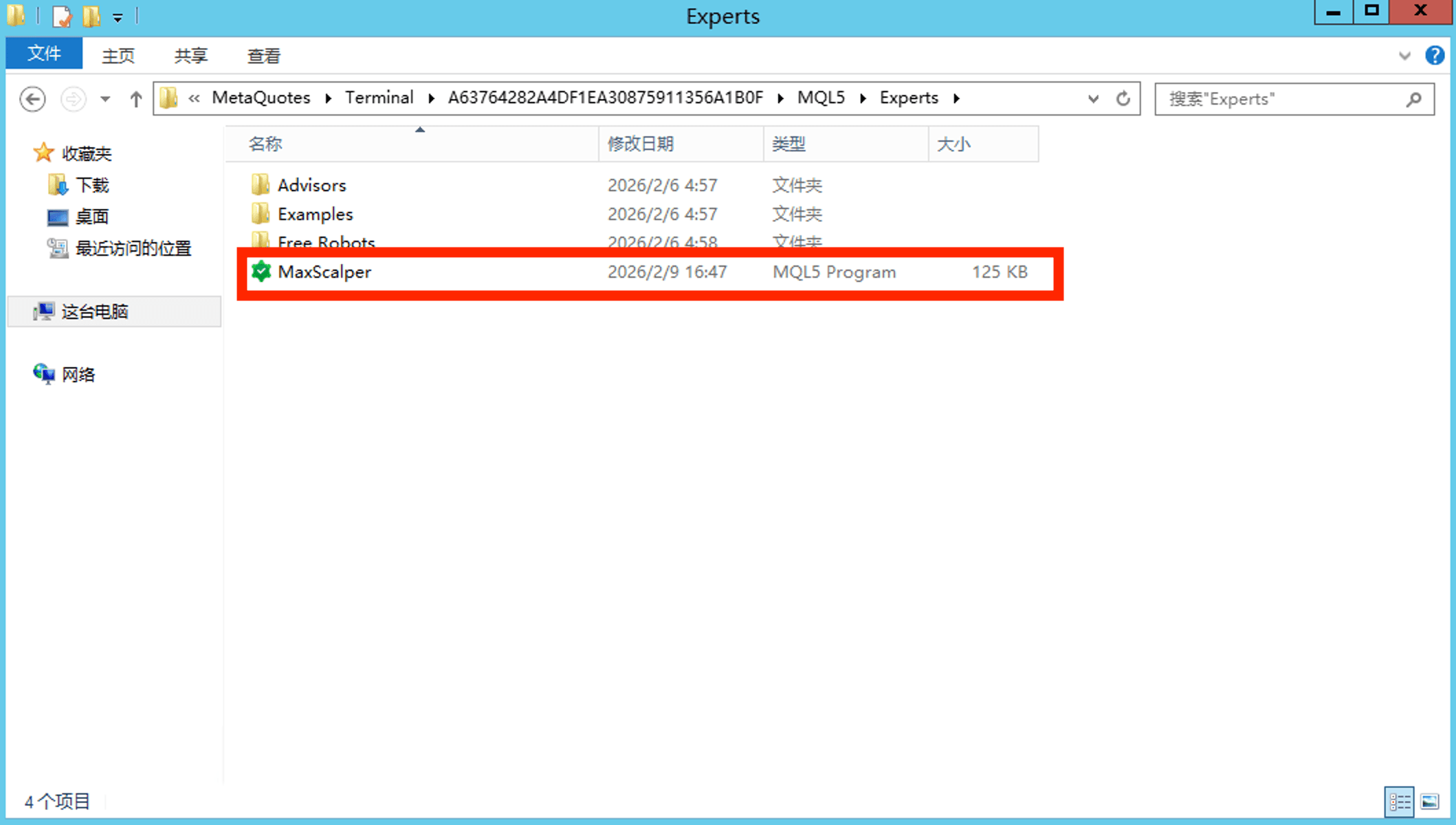
Copy (or move) the MaxScalper EA .ex5 file into the Experts folder.
Restart or refresh MT5
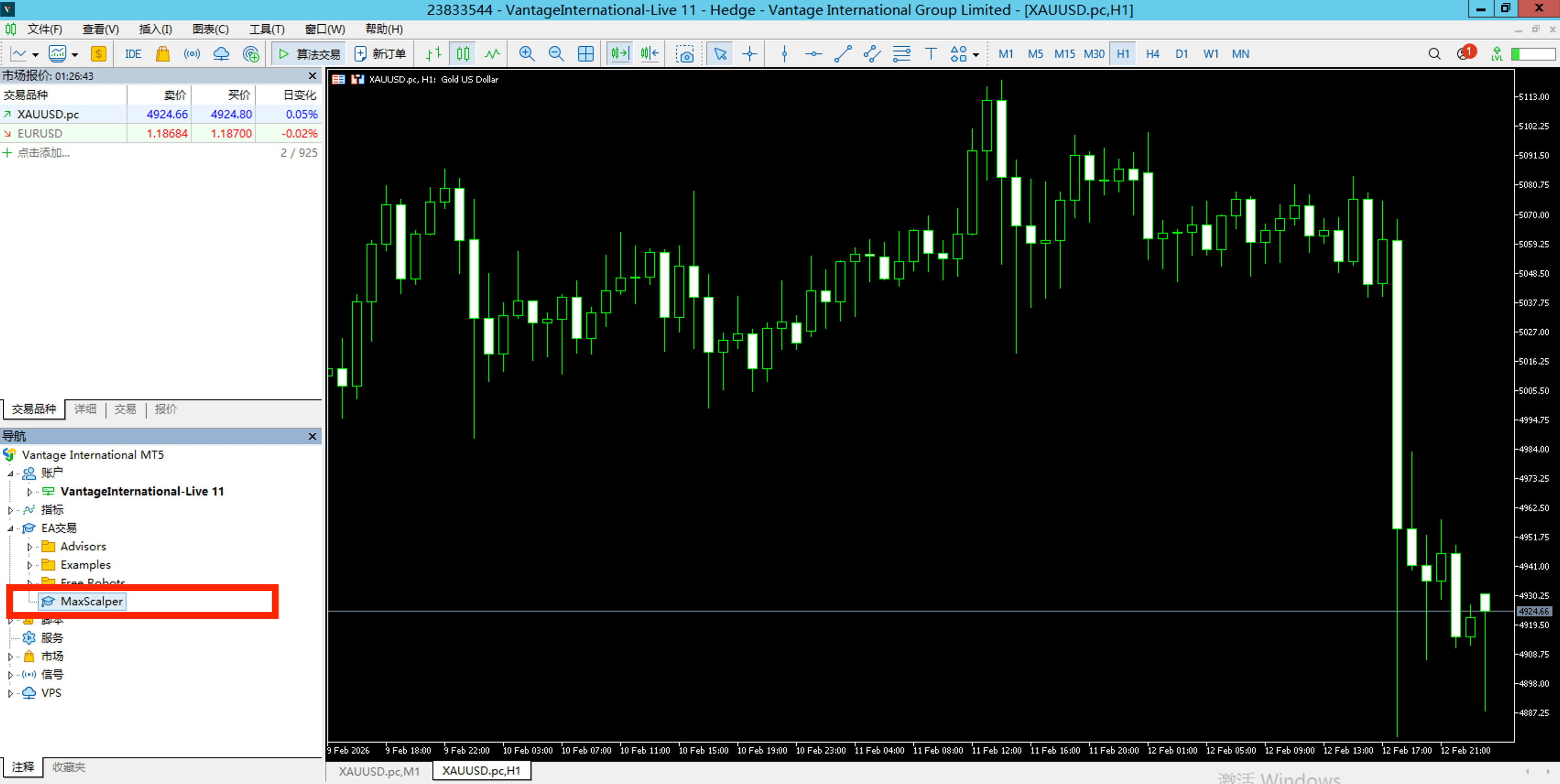
Return to MetaTrader 5 and either restart the platform, or right-click 'Expert Advisors' in the Navigator panel and select 'Refresh'. MaxScalper EA should now appear in the list.
Enable WebRequest URL
MaxScalper EA must connect to the licence validation server on startup and every 6 hours. You need to whitelist the URL in MetaTrader 5 before attaching the EA — otherwise the licence check will fail.
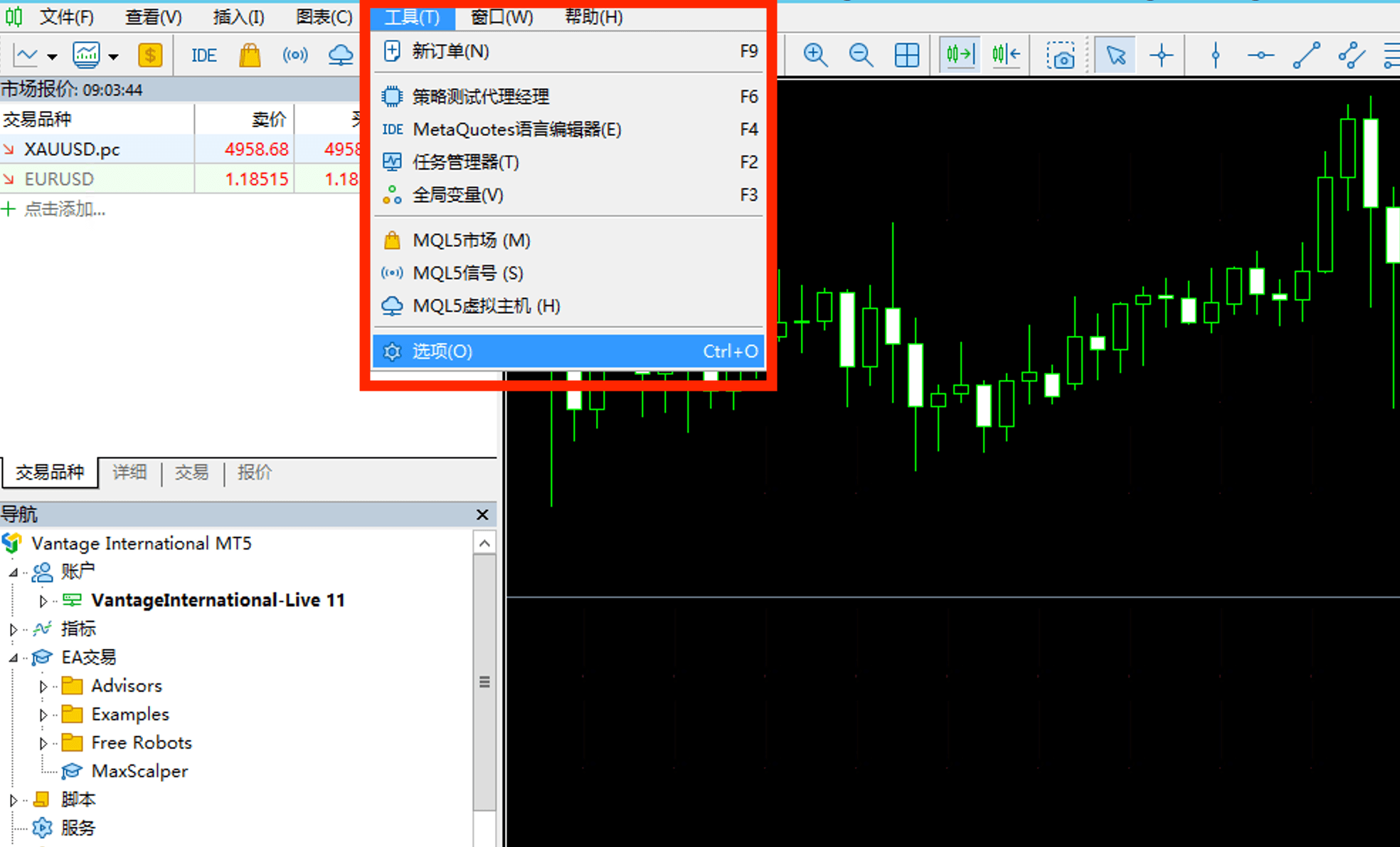
Open MT5 Options
In MetaTrader 5, go to Tools > Options (or press Ctrl+O) to open the settings window.
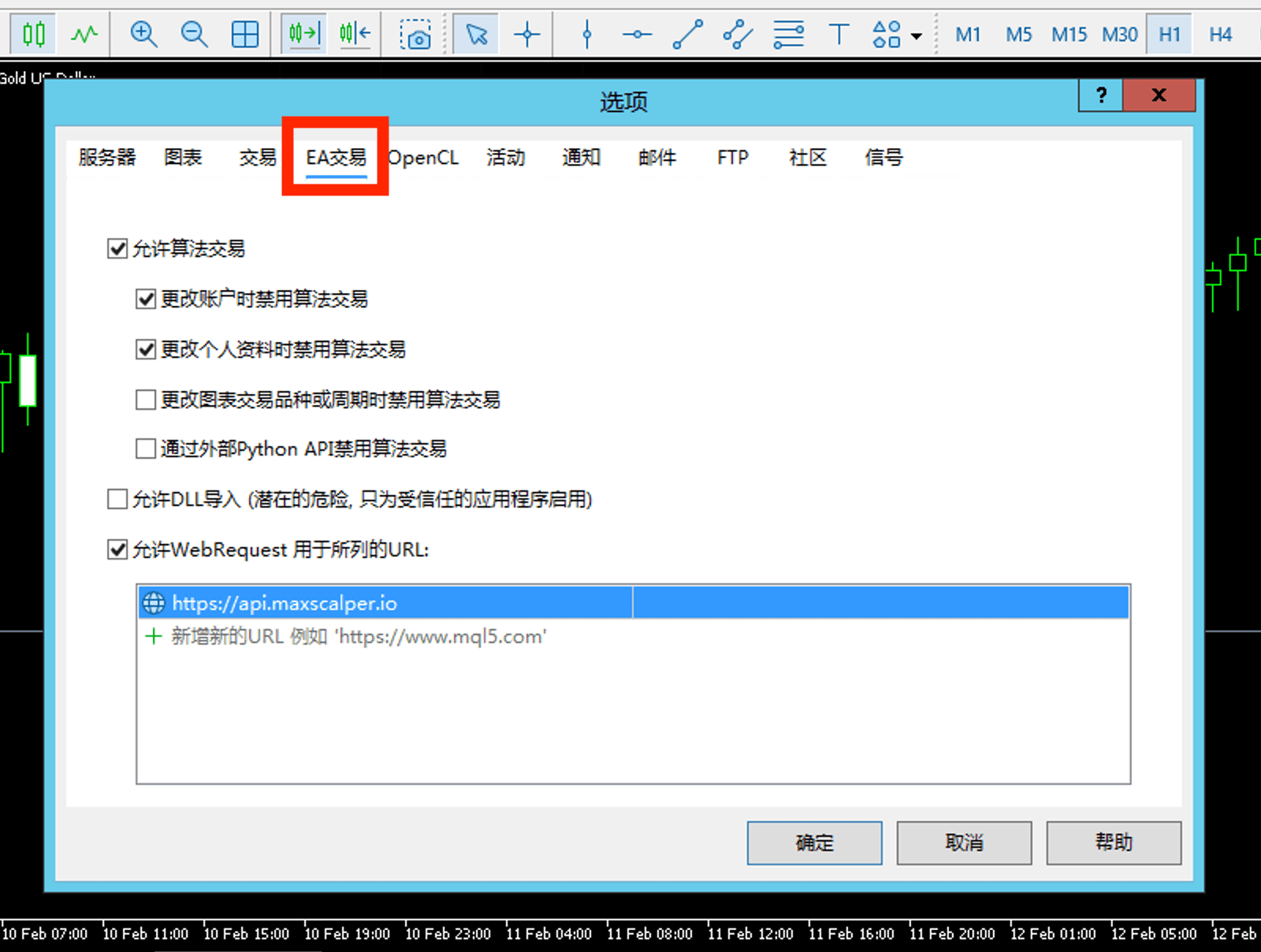
Go to Expert Advisors tab
Click on the 'Expert Advisors' tab at the top of the Options window.
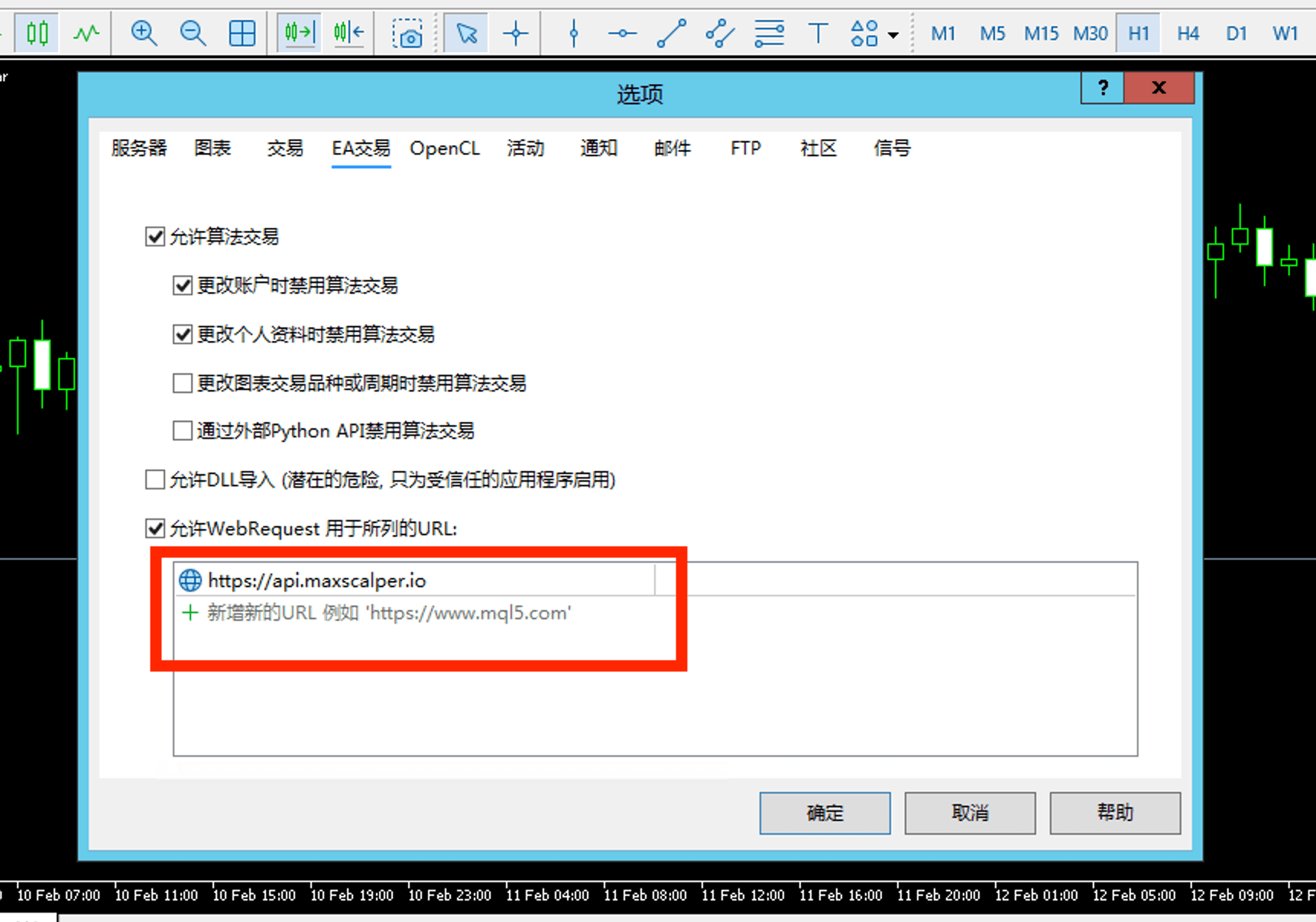
Enable WebRequest
Check the box labelled 'Allow WebRequest for listed URL'. This enables outbound HTTP connections from EAs.
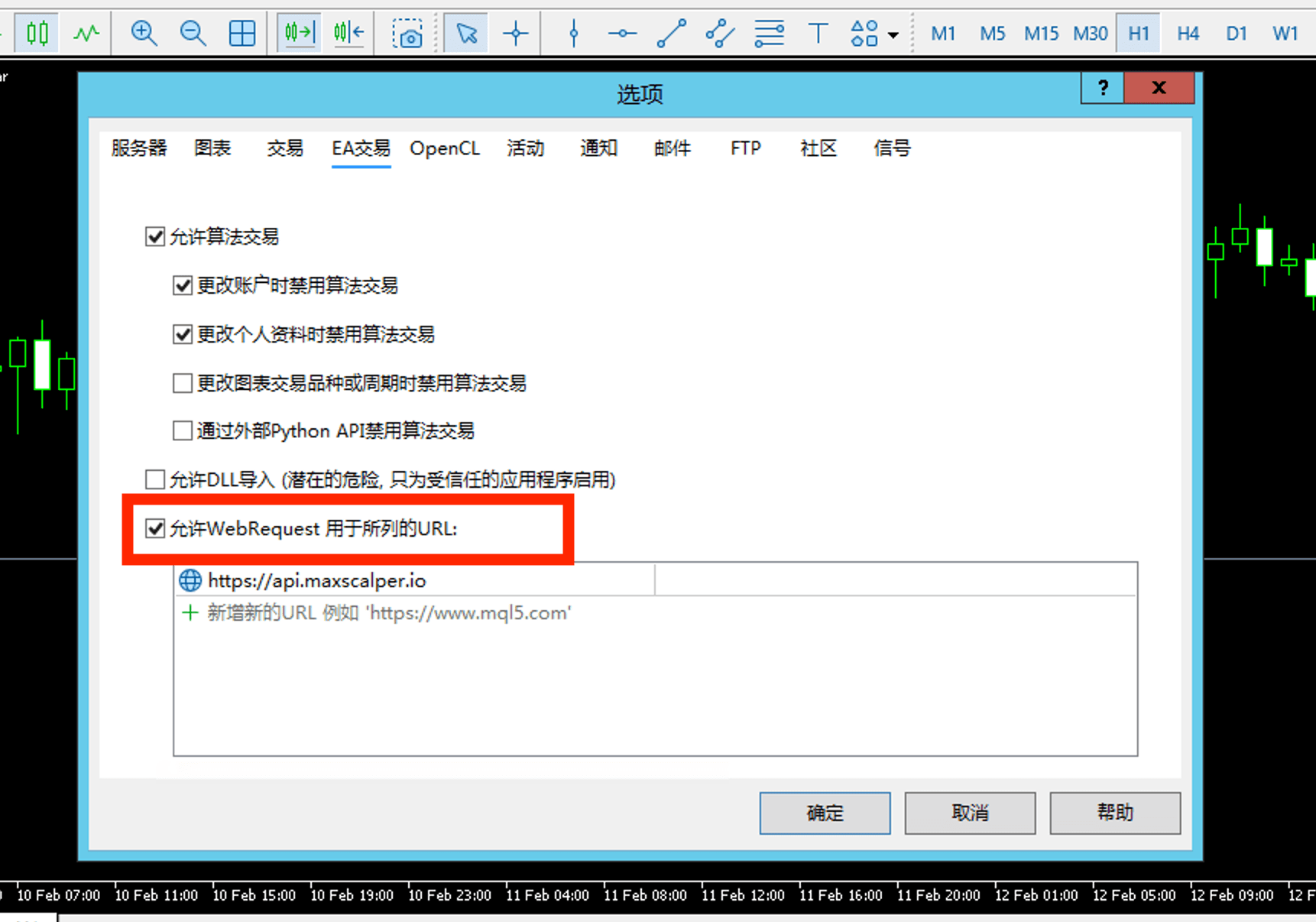
Add the licence URL
Click the '+' button and add the following URL exactly: https://api.maxscalper.io — then click OK to save.
Attach EA to Chart
Once the URL is whitelisted, attach MaxScalper EA to a XAUUSD chart to start trading.
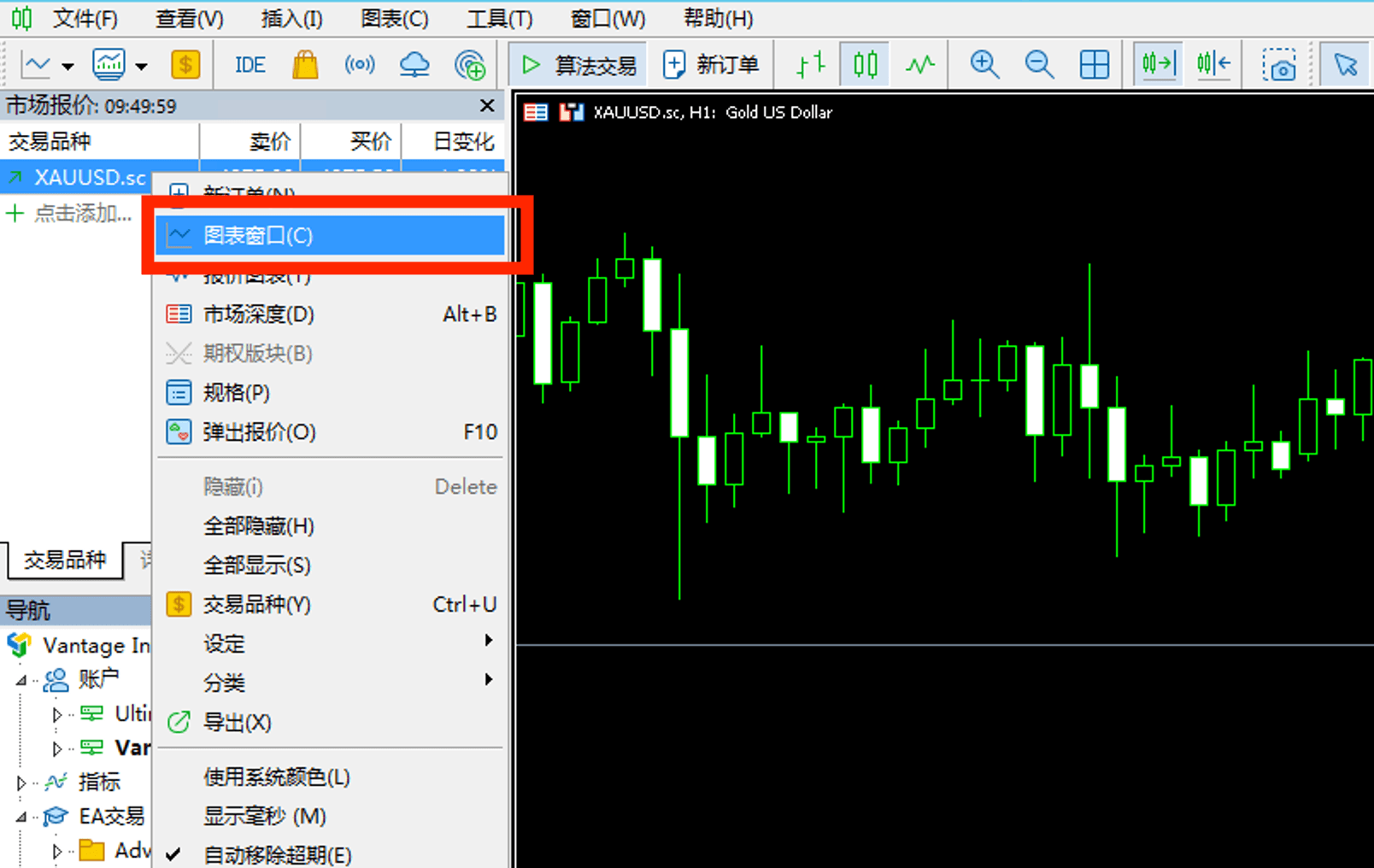
Open a XAUUSD chart
In MetaTrader 5, go to File > New Chart > XAUUSD, or find XAUUSD in the Market Watch panel (Ctrl+M) and double-click it.
Enable Algo Trading
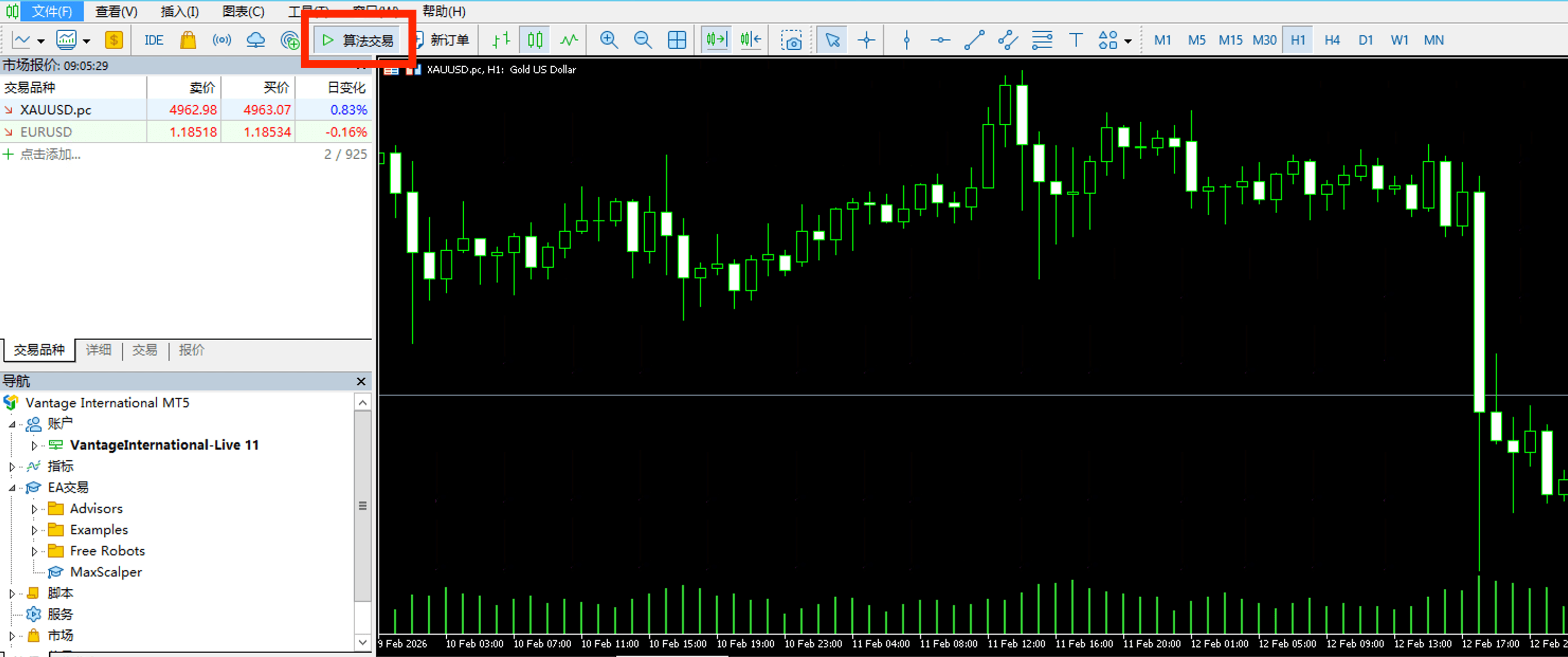
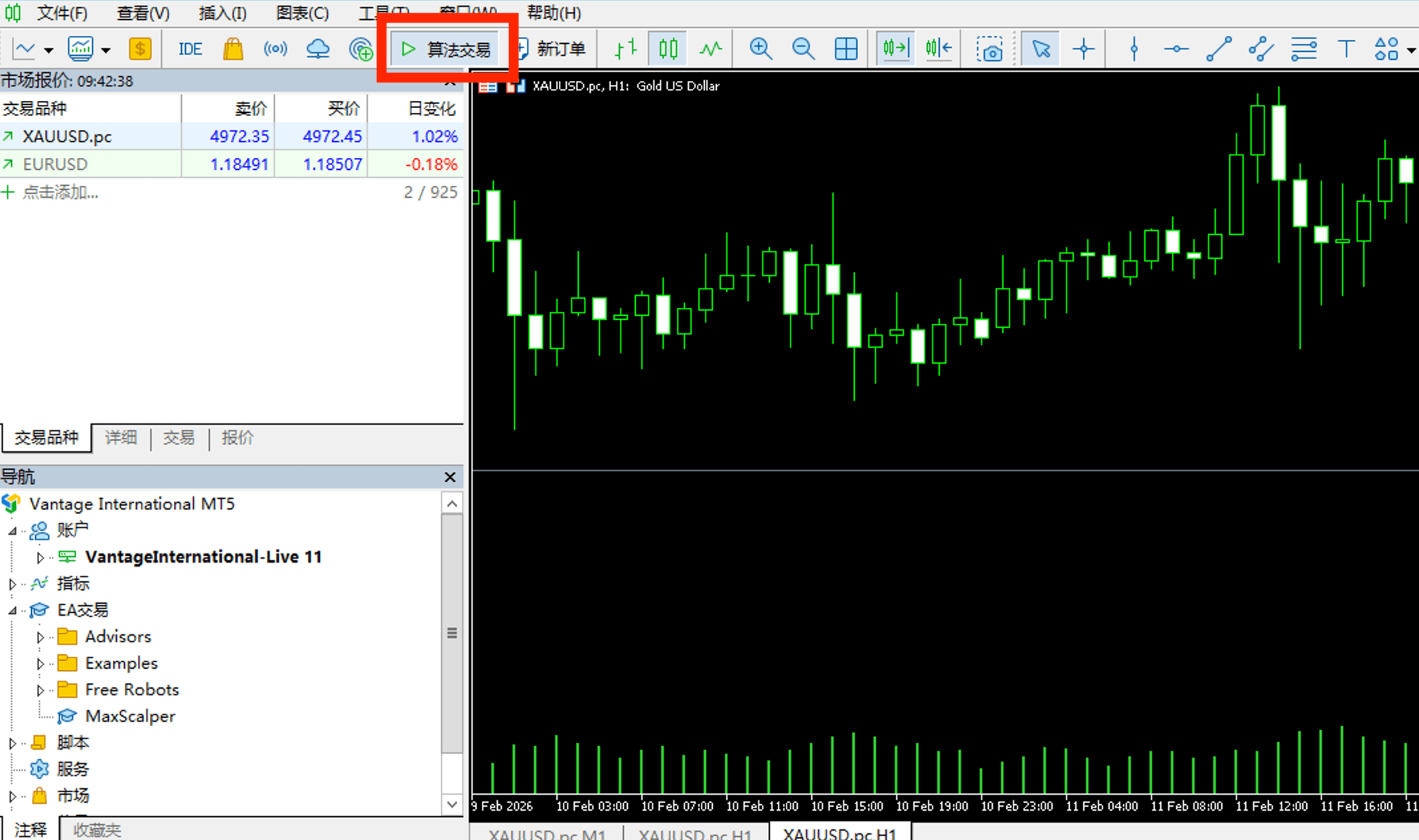
Click the 'Algo Trading' button in the MT5 toolbar so it turns green. You can also enable it from Tools > Options > Expert Advisors > Allow Algorithmic Trading.
Drag the EA onto the chart
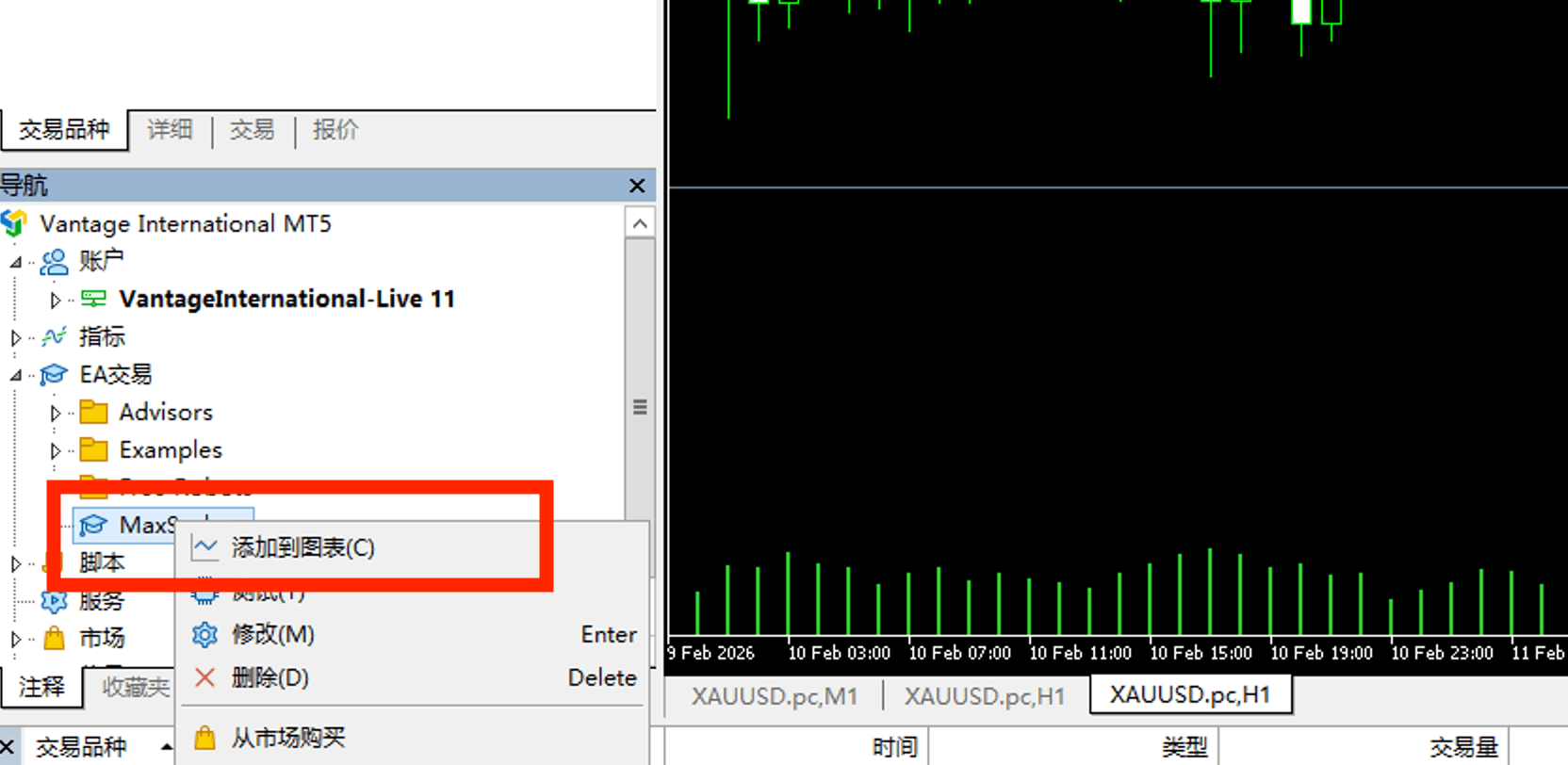
In the Navigator panel (Ctrl+N), expand 'Expert Advisors', find 'MaxScalper EA', and drag it onto the XAUUSD chart. A settings dialog will appear.
Allow Algo Trading in Common tab
In the EA dialog, go to the 'Common' tab and ensure 'Allow Algo Trading' is checked.
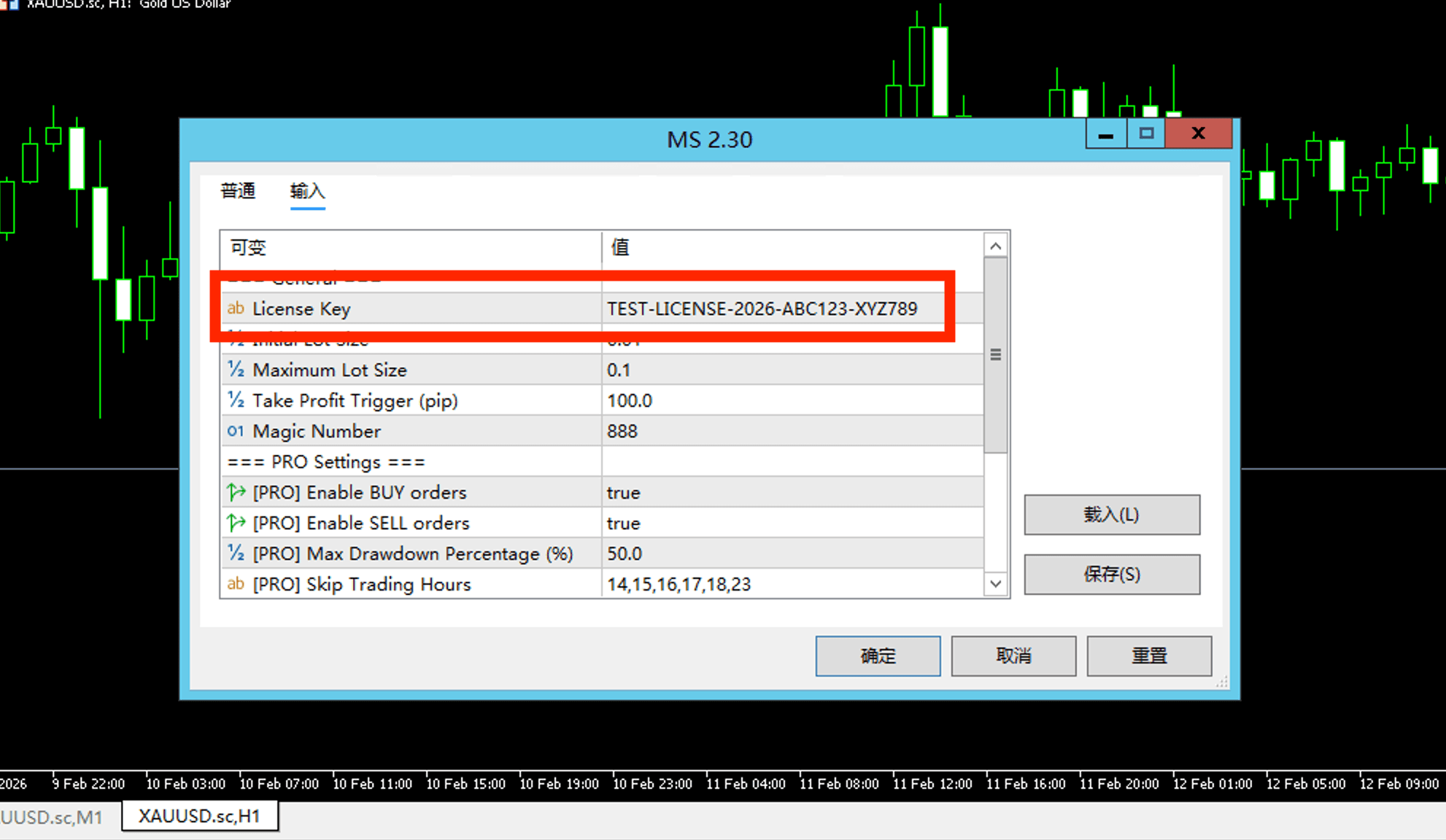
Enter your Licence Key
Go to the 'Inputs' tab and paste your licence key into the LicenseKey field. You can find your licence key in the Dashboard. Lite plan users are recommended to leave all other settings at their defaults.
Click OK to start
Click 'OK'. The EA name and a smiley face icon will appear in the top-right corner of the chart confirming it is active.
Verify EA is Running
After attaching the EA, confirm everything is working correctly before leaving it to trade.
Verification checklist:
- The EA name and a smiley face icon appear in the top-right corner of the chart
- The 'Algo Trading' button in the toolbar is green (enabled)
- The Experts tab (bottom of MT5) shows an initialisation message — 'License: VALID'
- The on-chart dashboard panel is visible with your account info and licence status
- The Journal tab shows no error messages related to the EA
Lot Size Guide
Use this table as a starting reference for setting your InitialLot based on your Cent account balance. These are recommended starting points — you can adjust up or down depending on your personal risk tolerance.
| Account Balance (USC) | Approx. USD Value | Recommended InitialLot |
|---|---|---|
| 20,000 USC | ≈ USD 200 | 0.01 |
| 50,000 USC | ≈ USD 500 | 0.02 |
| 100,000 USC | ≈ USD 1,000 | 0.04 |
| 200,000 USC | ≈ USD 2,000 | 0.08 |
| 500,000 USC | ≈ USD 5,000 | 0.20 |
Settings Reference
A complete reference for all MaxScalper EA input parameters.
General Settings
Core parameters available to all plan tiers.
License KeyDefault: ""Your MaxScalper EA licence key. Copy it from the Dashboard and paste it here. The EA will not trade without a valid licence key bound to your MT5 account number.
Initial Lot SizeDefault: —The lot size for the very first trade in each new grid cycle (both BUY and SELL). For Lite plan (Cent accounts), 0.01 lots = 1 micro-lot in a cent account. Increase this value to scale up position sizes — but always increase proportionally with your account balance.
Maximum Lot SizeDefault: —The maximum lot size any single trade in the grid can reach. The EA will cap all calculated lot sizes at this value. For Lite plan, this is automatically configured. For Pro, set this according to your risk tolerance.
Take Profit TriggerDefault: —The profit target (in pips) measured from the basket average price.
MagicDefault: —The unique magic number identifying this EA's trades. Only change this if you are running multiple different EAs on the same account. Never change the magic number after the EA has open positions.
PRO Settings
These parameters are only available on the Pro plan. Lite plan users have these locked to safe defaults.
ENABLE BUY ordersPRO onlyDefault: —Enable or disable the BUY grid. When disabled, the EA will not open any new BUY positions. Useful if you only want to trade in one direction.
ENABLE SELL ordersPRO onlyDefault: —Enable or disable the SELL grid. When disabled, the EA will not open any new SELL positions. Useful during strong trending markets where you want to suppress one side.
Max Drawdown PercentagePRO onlyDefault: —The maximum allowable drawdown as a percentage of account balance. If the equity drops below this threshold, the EA will halt trading and close all open positions to protect your capital.
Skip Trading HoursPRO onlyDefault: —A comma-separated list of server time hours (0–23) during which the EA will not open new trades. The EA will still manage existing positions during these hours. Adjust based on your broker's server time.
Stop Loss Price DistancePRO onlyDefault: —A hard stop-loss distance in pips measured from the oldest position in each grid. If price moves this far against the oldest position, the entire grid side is closed immediately at market. This acts as an emergency safety net.
Grid Tier Settings
MaxScalper EA uses a 4-tier grid system. Each tier controls how far apart new orders are placed and how lot sizes scale as more positions are added. All tier parameters are PRO only — Lite plan users use the locked defaults.
Grid tiers
Tier 1 — Early grid
T1 EndLevelPRO onlyDefault: —The grid level at which this tier ends and the next tier begins. Each tier's EndLevel must be larger than the previous tier.
T1 StepDistancePRO onlyDefault: —The price distance (in pips) between grid orders within this tier. Earlier tiers use smaller steps for frequent entries; later tiers use larger steps to reduce exposure during extreme moves.
T1 LotMultiplierPRO onlyDefault: —Each new position's lot size is calculated by multiplying the previous position's lot by this value. Keep this close to 1.0 to minimise lot growth.
Tier 2 — Mid grid
T2 EndLevelPRO onlyDefault: —The grid level at which this tier ends and the next tier begins. Each tier's EndLevel must be larger than the previous tier.
T2 StepDistancePRO onlyDefault: —The price distance (in pips) between grid orders within this tier. Earlier tiers use smaller steps for frequent entries; later tiers use larger steps to reduce exposure during extreme moves.
T2 LotMultiplierPRO onlyDefault: —Each new position's lot size is calculated by multiplying the previous position's lot by this value. Keep this close to 1.0 to minimise lot growth.
Tier 3 — Deep grid
T3 EndLevelPRO onlyDefault: —The grid level at which this tier ends and the next tier begins. Each tier's EndLevel must be larger than the previous tier.
T3 StepDistancePRO onlyDefault: —The price distance (in pips) between grid orders within this tier. Earlier tiers use smaller steps for frequent entries; later tiers use larger steps to reduce exposure during extreme moves.
T3 FixedLotPRO onlyDefault: —Instead of a multiplier, a fixed lot size is used for every position in this tier. This caps lot size during deep adverse moves, providing a predictable maximum exposure.
Tier 4 — Max grid
T4 EndLevelPRO onlyDefault: —The grid level at which this tier ends and the next tier begins. Each tier's EndLevel must be larger than the previous tier.
T4 StepDistancePRO onlyDefault: —The price distance (in pips) between grid orders within this tier. Earlier tiers use smaller steps for frequent entries; later tiers use larger steps to reduce exposure during extreme moves.
T4 FixedLotPRO onlyDefault: —Instead of a multiplier, a fixed lot size is used for every position in this tier. This caps lot size during deep adverse moves, providing a predictable maximum exposure.
On-Chart Dashboard Panel
MaxScalper EA displays a live information panel directly on the MT5 chart. Here is what each line means.
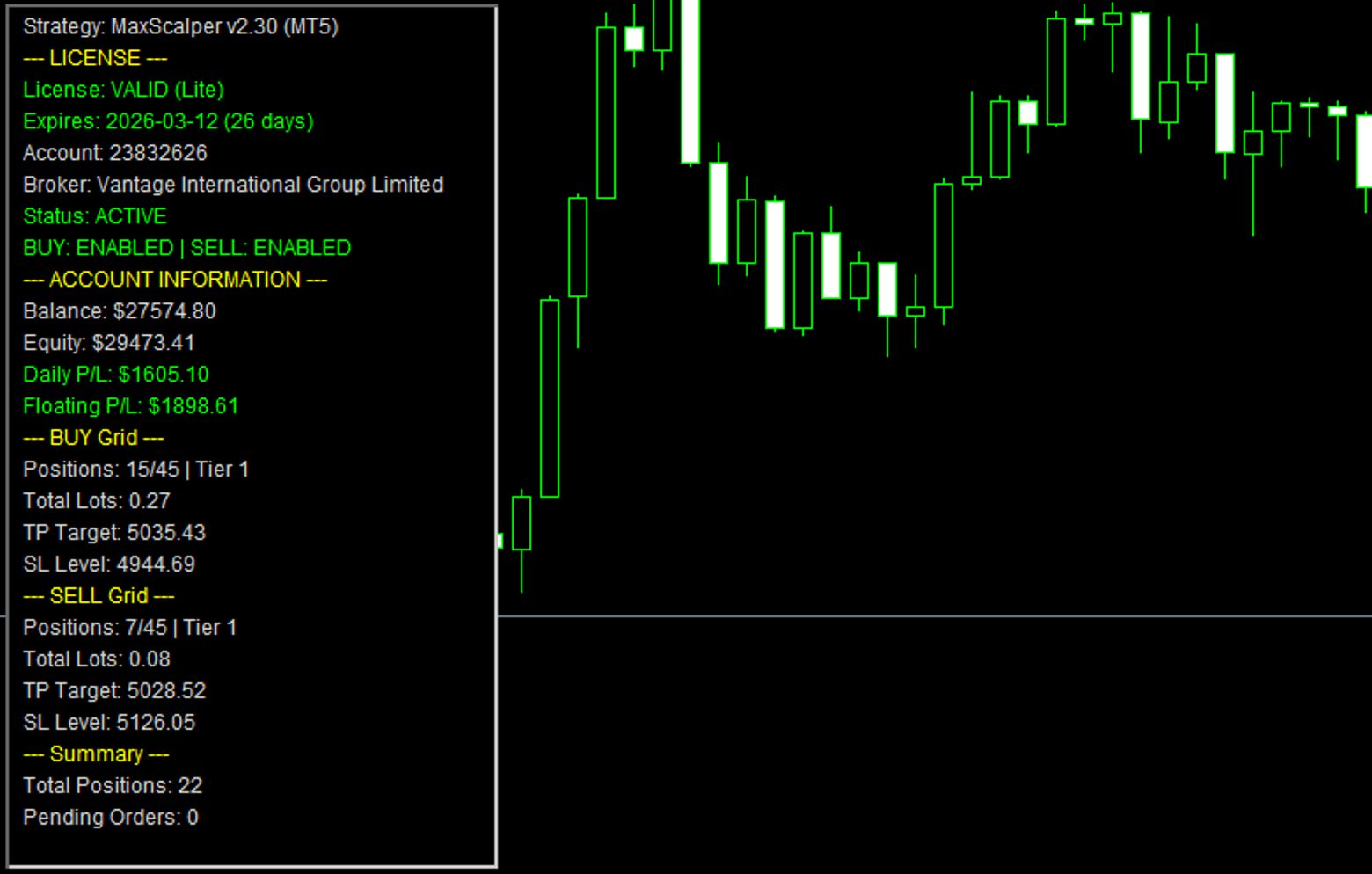
Strategy version
Shows the current EA version. If a newer version is available, an 'UPDATE vX.XX' notice will appear in orange.
License
Shows your licence status: VALID (green), GRACE (orange — server temporarily unreachable, trading continues for 24h), or INVALID (red — trading is paused).
Expires
Your licence expiry date and the number of days remaining. Shown in red when expired or within 3 days, orange within 7 days.
Account / Broker
Your MT5 account number and broker name, confirming the EA is running on the correct account.
Status
ACTIVE (green) means the EA is within allowed trading hours. PAUSED – Skip Hour (orange) means the current server hour is in SkipHours.
BUY / SELL
Shows whether the BUY grid and SELL grid are enabled or disabled (Pro setting). Both green = both directions active.
Balance / Equity
Your current account balance and equity in real time.
Daily P/L
Realised profit or loss for the current trading day, calculated from balance changes since the daily reset at midnight (server time).
Floating P/L
Total unrealised profit or loss from all currently open positions.
BUY Grid / SELL Grid
Current positions vs maximum, current tier, total lots held, TP target price, and basket SL price.
Total Positions / Pending Orders
Summary counts of all open positions and pending orders placed by the EA.
Need Help?
If you encounter any issues during installation or while using MaxScalper EA, please contact our technical support team. We will help you complete the setup and get started as quickly as possible.